Online backups: the 3-2-1 idea, using cloud services
Last updated:
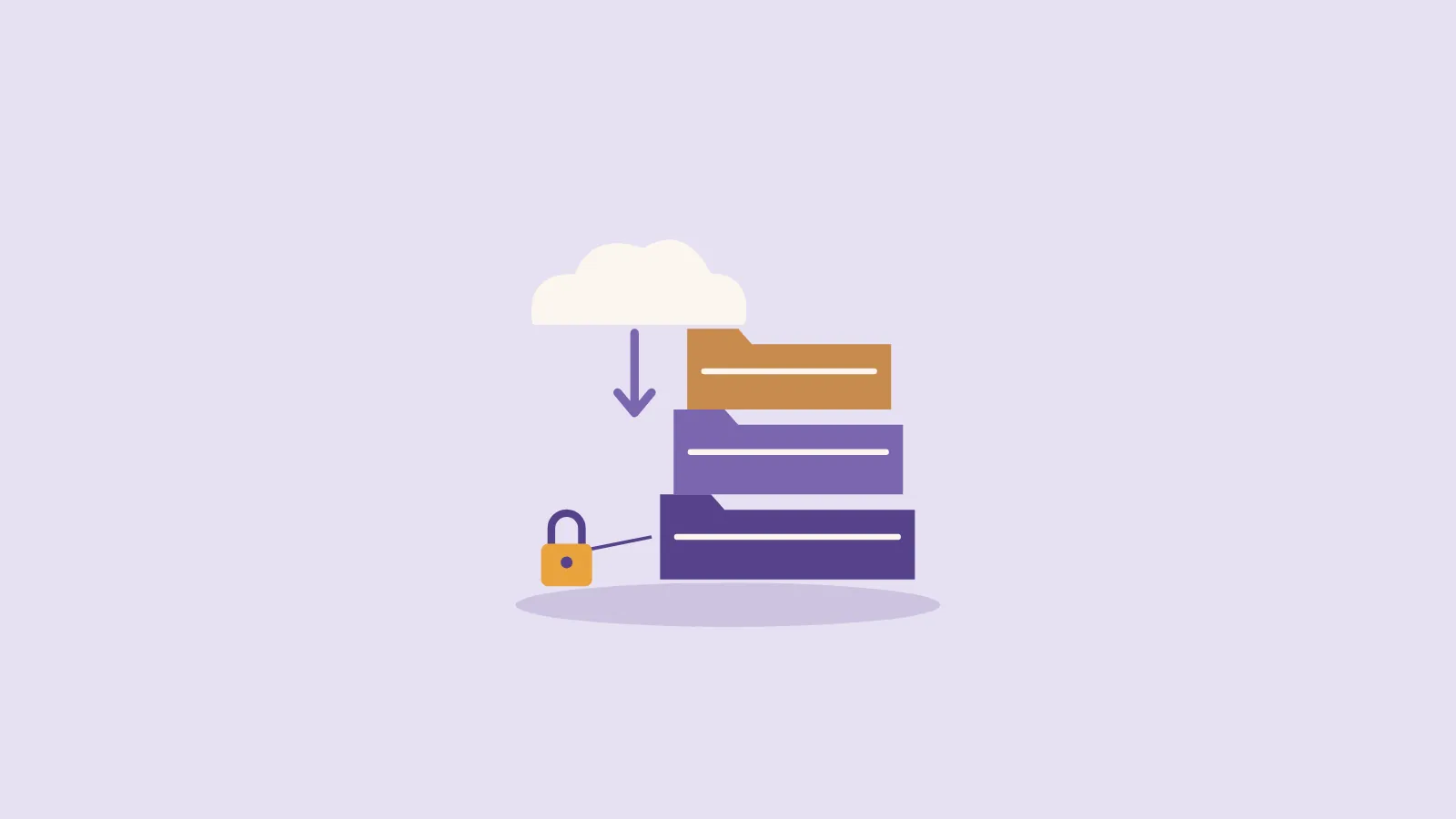
Photos, tax records, the kids' school work: losing them hurts. A backup is a copy you can restore from if the original is lost, deleted or locked up by ransomware. Here's a simple way to think about it, and what to check in a cloud backup service.
1. The 3-2-1 idea
A common rule of thumb, described in a guide from the US Cybersecurity and Infrastructure Security Agency (CISA), is: - 3 copies of anything important: the original plus 2 backups. - 2 different types of storage, so one problem doesn't wipe out both. - 1 copy kept offsite, away from your home or business.
A cloud backup service is one way to cover the offsite copy, so a fire or theft at home won't take every copy at once.
2. Cloud backup versus cloud sync
They sound alike but do different jobs. - Cloud sync (cloud storage): keeps the same files on your devices and online. If a file is deleted or scrambled on your computer, the synced copy can change too. - Cloud backup: keeps copies you can restore, and many services keep older versions as well. Check what yours offers.
Some services do both. Check which one you're actually paying for.
3. What to check before you sign up
- Older versions and deleted files: can you restore earlier versions, and for how long are they kept? The Australian Cyber Security Centre (ACSC) suggests asking whether you can restore earlier versions or only the latest one.
- Encryption: some providers encrypt your backup before it's uploaded so they can't read it. If you choose this, don't lose your password or recovery key.
- Account protection: turn on two-factor authentication and use a strong passphrase (see our guide).
- Reputation: look up the provider's track record, including any reported data breaches.
- Where your data is stored: ask which countries the provider stores data in.
- What's covered: which devices, folders and file types, and how often it backs up.
- Restoring: can you restore it yourself, and how?
- Cancelling: what happens to your backups if you stop paying, and how long you have to download them. The ACCC has warned consumers about subscription traps, so read the renewal terms.
4. Test your restore
A backup you've never restored from is a guess. Regularly restore a few files to check they open. The ACSC suggests testing that you can restore from a backup, and its small business handbook says a backup plan should cover how often backups are tested.
5. Small business?
Check whether the services you already use, like email or accounting, back up your data or whether that's your job. The ACSC's cloud guidance has a handy list of questions to ask your provider. They include whether the provider backs up your data or you need to, whether backups are automatic or cost extra, and whether your backups are protected from being changed or deleted without your approval.
The short version
- 3 copies, 2 types of storage, 1 offsite.
- Sync isn't the same as backup. Look for version history.
- Check encryption, retention, where data is stored and cancellation terms.
- Protect the account with two-factor.
- Test a restore regularly.
We don't list prices here, because they change depending on where you are. Check the provider's own site for current prices and plans.
Sources
- https://www.cisa.gov/sites/default/files/publications/data_backup_options.pdf
- https://www.cyber.gov.au/publication/small-business-cyber-security-handbook/protecting-devices-systems-and-networks
- https://www.cyber.gov.au/publication/cloud-shared-responsibility-model-guidance-for-individuals-and-small-and-medium-businesses
- https://www.accc.gov.au/media-release/accc-warns-consumers-to-beware-of-subscription-traps
Related guides
Cloud storage plans compared: what to look for
Password managers explained, and how to switch
Two-factor authentication explained: apps versus SMS
Card photos: Photo credits